Gold365 App: Mobile Access and Smooth Navigation
Get fast, simple Gold365 access on your phone. This page shows you how Gold365 mobile access works, when a browser is the better choice, how to set things up on Android and iPhone, and the safety rules that matter before you ever touch a gold365 apk file. Adult 18+ access.
·Written and reviewed by the Gold365 editorial team
18+ only. Online gaming and account-related services may be restricted in some regions. Always follow local laws and use online platforms responsibly.
The Basics
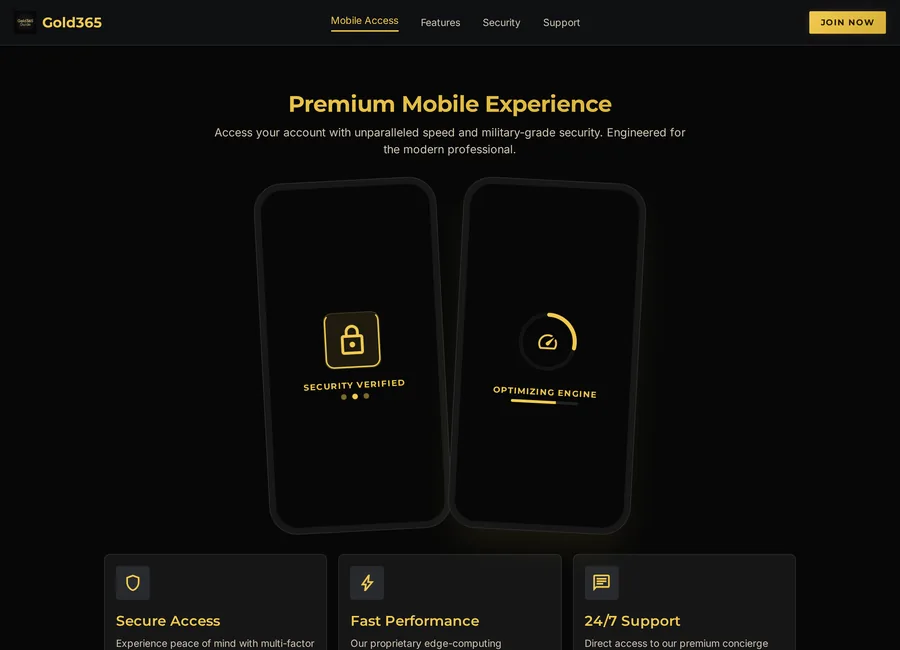
Gold365 App Overview
Most people looking for a Gold365 app just want a fast, app-like way to reach their betting account on a phone — the cricket exchange, the IPL and other sports, and the live casino, all in one place. The good news is you do not need to install anything: Gold365 runs in any modern mobile browser, and you can add it to your home screen for a one-tap icon with none of the risk of a downloaded file.
Gold365 offers official mobile access through your browser and a home-screen shortcut, so you always reach us safely. We explain every access option honestly here, so you can pick the safest route for your device and steer clear of the fake download pages that target this search term. Only ever use links you reach from our official site — never an APK forwarded in a chat.
Browser Access
The simplest option. Open the correct website in Chrome or Safari, bookmark it once, and use it like an app with zero installation risk.
Home-Screen Shortcut
Both Android and iOS let you add a website to your home screen. You get an app-style icon and full-screen feel without any APK.
APK Caution
Files named gold365 apk on random sites are a common scam vector. Read the safety section below before considering any install.
Choosing Your Route
App vs Mobile Browser Access
For most users, mobile browser access is the safer and easier choice for gold365 mobile access. A browser needs no downloads, updates itself automatically and carries no installation risk. An app only makes sense when it comes from a source you have fully verified.
| Factor | Mobile Browser | Installed App / APK |
|---|---|---|
| Setup effort | None — open the page and bookmark it | Download, install and permission steps |
| Safety | High, if the address is verified | Depends entirely on the file source |
| Updates | Automatic — always the latest version | Manual updates; old versions may break |
| Storage used | Almost none | App size plus cached data |
| Works on iPhone | Yes, through Safari or Chrome | iOS does not allow APK files at all |
Our practical recommendation: start with the browser. If you never install anything, an entire category of scams and malware simply cannot reach you.
Android Users
Android Access Guide
Android users can get a smooth, app-like gold365 experience in under a minute using Chrome, with no APK involved. This is the setup we suggest for most people because it is fast, safe and easy to undo.
- Open Chrome. Make sure the browser is updated from the Play Store for speed and security.
- Type the address manually. Enter the website address yourself instead of tapping links from chats or groups.
- Verify the page. Check the spelling in the address bar and confirm HTTPS before entering any detail.
- Add to home screen. Use Chrome's menu and choose "Add to Home screen" for an app-style icon.
- Log in from the shortcut. From now on, always open the site from this saved shortcut, never from forwarded links.
If you are new and do not have access yet, begin with our registration guide before worrying about apps or shortcuts.
iPhone Users
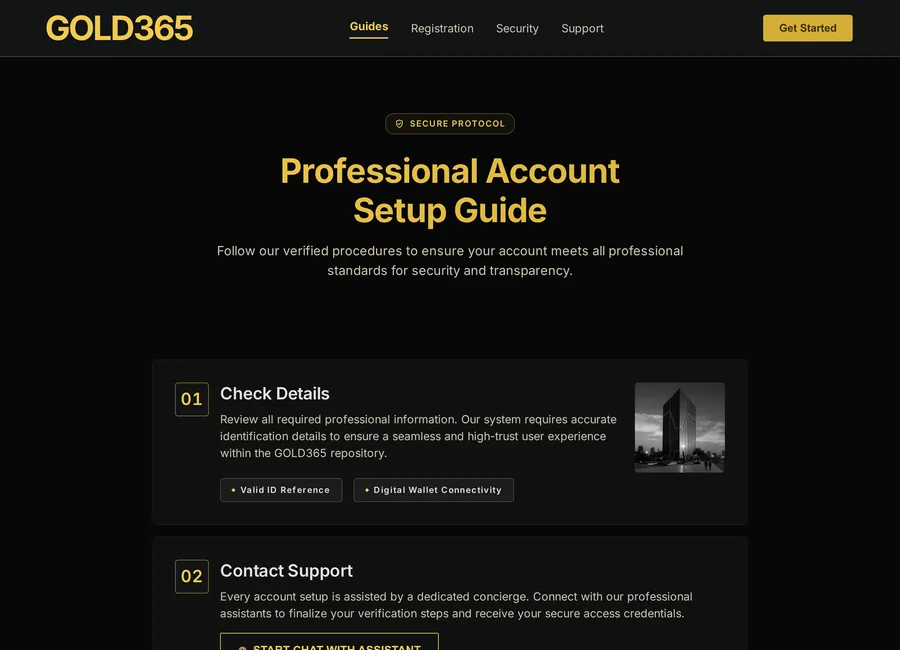
iPhone and iOS Browser Guide
iPhone users should know one fact clearly: iOS does not support APK files, so any site offering a "gold365 apk for iPhone" is misleading you by definition. The correct route on iOS is Safari or Chrome, which works well and keeps Apple's security protections intact.
- Open Safari or Chrome. Keep iOS and the browser updated for best performance.
- Enter the address yourself. Type it manually and bookmark the page after verifying it.
- Add to Home Screen. Tap the share icon and choose "Add to Home Screen" for a full-screen, app-like icon.
- Use the saved icon every time. This protects you from lookalike links sent through messages.
Once set up, mobile sign-in works the same as on any device — our login guide covers the safe sign-in checklist step by step.
Read Before Installing Anything
Safety Tips Before Installing Any APK File
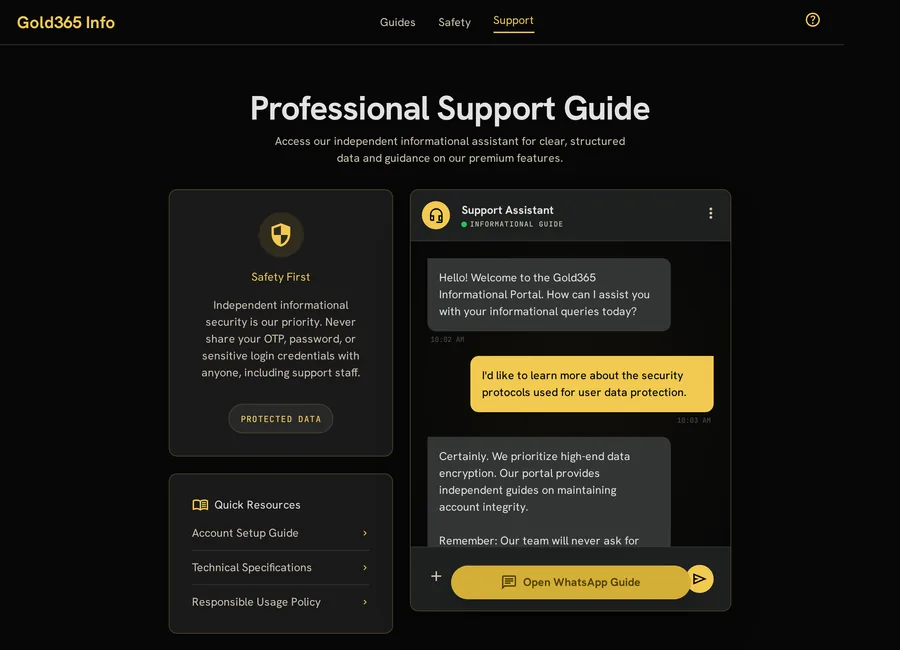
The gold365 apk search attracts fake download pages that bundle malware, steal OTPs or harvest personal data. We do not provide any APK download link, and we strongly suggest browser access instead. If you still consider an APK from any source, apply every check below first.
- Never download an APK from a link forwarded in WhatsApp, Telegram or SMS.
- Never install a file from a website you found through an ad or a random search result.
- Never grant SMS, contacts or accessibility permissions to an unknown app — this is how OTP theft happens.
- Never enter your password or banking details into an app you cannot verify.
- Never keep "Install unknown apps" enabled permanently on your Android settings.
- Verify the source independently before touching any file — if you cannot verify it, do not install it.
- Check what permissions an app requests and reject anything unrelated to its purpose.
- Keep Google Play Protect switched on so sideloaded files are scanned.
- Prefer the mobile browser route whenever you are in doubt — it removes the risk entirely.
- Read our Gold365 ID safety checklist for broader account protection habits.
Performance
Page Speed and Mobile Usability
Good gold365 mobile access is mostly about a fast, stable phone setup. Slow pages are usually caused by weak networks, overloaded browsers or old devices — all fixable with small habits that take seconds.
- Close unused tabs and apps before opening the site on older phones.
- Clear browser cache monthly to remove stale files that slow loading.
- Prefer a stable 4G/5G or strong Wi-Fi signal; switch networks if pages stall.
- Keep at least 1–2 GB of free storage so the browser can cache smoothly.
- Disable battery-saver mode during use if pages render slowly.
For more device-level tips, see our mobile access guide on the blog.
Ask for Account Guidance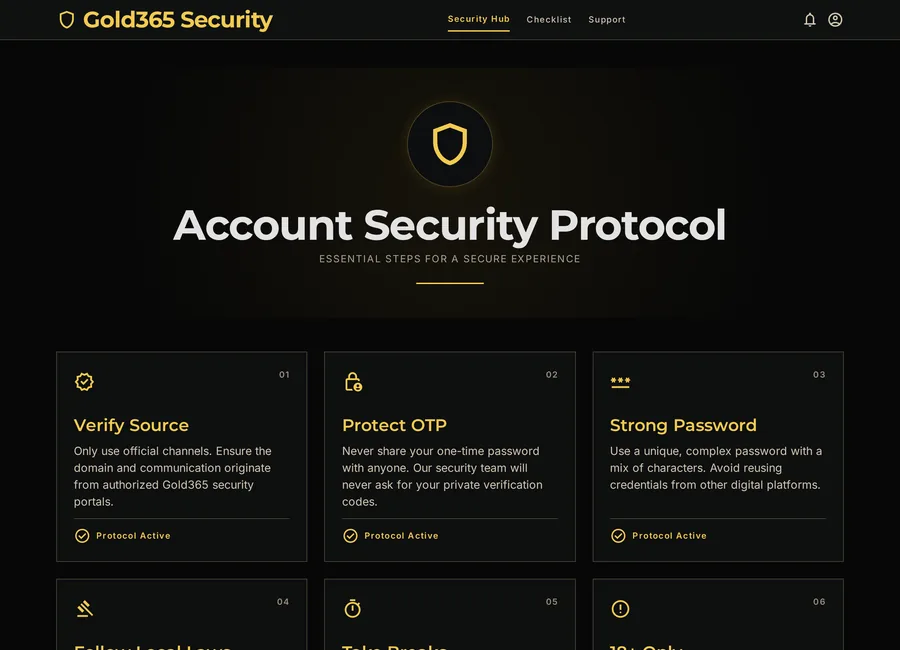
Know the Tech
What an APK Actually Is, and Why Caution Matters
To make safe choices, it helps to know what you are actually being offered. An APK is the installation file format for Android apps — the same kind of file the Play Store uses behind the scenes. On its own, the format is normal and neutral. The risk is entirely about where the file comes from.
When you install from an official store, the file has passed automated safety checks and the developer is identifiable. When you "side-load" an APK from a random website or a chat link, none of those protections apply. You are trusting a stranger's file with deep access to your phone, and there is no easy way to know what it really does once installed.
This is why the gold365 apk search is so heavily targeted by bad actors. They know people searching for it are ready to install something, so they present a convincing download page. A malicious app can quietly read incoming SMS messages — including your OTPs — harvest your contacts, or overlay fake login screens on top of real apps. None of that is visible to a normal user until damage is done.
The honest bottom line: for the vast majority of users, there is no good reason to side-load an APK for this purpose at all. The mobile browser route gives you the same access with none of the risk.
Recognise the Trap
How Fake Gold365 App Pages Try to Trick You
Fake app-download pages follow recognisable patterns. Once you can name the tricks, they lose almost all their power. Watch for these tactics whenever you land on any page offering a gold365 app or apk download.
- Fake download counters. "10,42,318 downloads" and five-star ratings are trivial to fabricate and mean nothing about safety.
- Urgent version warnings. "Your app is outdated, update now" pop-ups are designed to make you install a malicious file quickly.
- Permission overload. An install that immediately asks for SMS, contacts and accessibility access is a major red flag.
- Lookalike branding. Copied logos and colours create false trust; appearance is never proof of legitimacy.
- "Disable Play Protect" instructions. Any page telling you to switch off your phone's built-in protection is telling you it cannot pass that protection.
If a page does any of these things, close it. There is no version of "but the offer looked good" that outweighs handing a stranger control of your phone. When in doubt, fall back to the browser method described above and reach out through the safe channel on our contact page.
Keep It Light
Managing Storage, Data, Battery and Notifications
Once you have a comfortable browser-based setup, a little housekeeping keeps it fast and unobtrusive. These small settings are easy to overlook but make the day-to-day experience noticeably smoother, especially on mid-range or older phones.
Storage and Cache
Clear the browser cache occasionally so old files do not pile up. Keeping 1–2 GB free lets pages load and cache smoothly without stutter.
Mobile Data
A browser-based experience uses far less data than a heavy app. Watch your usage on a metered plan and prefer Wi-Fi for long sessions.
Battery
Close unused tabs and turn off battery-saver during use if pages render slowly. Background tabs are a common hidden battery drain.
Notifications
Only allow website notifications you actually want, and deny them by default. Unwanted prompts are often a route for spam and scams.
None of this is essential to access, but together these habits keep your phone tidy and your experience quick. They also reduce the number of pop-ups and prompts that scammers rely on to slip a bad link past you.
Quick Fixes
Troubleshooting Common Mobile Access Problems
Most mobile access hiccups are minor and quick to resolve. Before assuming something is wrong with your account, match your symptom to the table below and try the simple fix first — it resolves the large majority of cases without any support needed.
| Symptom | Likely Cause | Try This First |
|---|---|---|
| Home-screen icon opens a broken page | Address changed or shortcut outdated | Delete the shortcut and re-add it from the verified page |
| Page looks stretched or misaligned | Outdated browser or zoom setting | Update the browser and reset the page zoom |
| Constant re-login prompts | Cookies blocked or cache corrupted | Allow cookies for the site and clear the cache |
| Buttons not responding to taps | Heavy page load on an older device | Close other tabs and apps, then reload |
| Site will not open at all | Network or DNS issue | Switch between Wi-Fi and mobile data and retry |
If a fix here does not solve it, note the exact behaviour (without exposing your credentials in any screenshot) and reach a trusted support channel. Whatever the problem, never respond to it by installing an unknown APK — a genuine access issue is never solved by side-loading a file from a stranger.
Need Help With Gold365 Mobile Access?
Use the support option below for guidance on browser access, home-screen setup and account questions. We never send app files through chat — Gold365 support gives general guidance and follows all age and legal requirements.
18+ only. Online gaming and account-related services may be restricted in some regions. Always follow local laws and use online platforms responsibly.
Frequently Asked Questions
Is there an official Gold365 app to download?
Gold365 gives you official mobile access through your browser, and most users get a smooth, app-like experience simply by adding our page to their home screen. Always verify any source independently before installing anything, and never install an APK shared through chat links or unknown download pages.
Is Gold365 available on mobile?
Yes, users often access Gold365-related services through mobile browsers or app-like experiences on Android and iPhone. Always check the source before installing any APK and never download files from unknown links. Browser access with a saved bookmark is the safest option.
Is it safe to download a gold365 apk from a website?
Only if you can fully verify the source, which is rarely possible with random download pages. Fake APK sites commonly spread malware and steal OTPs. If you cannot verify a file independently, do not install it — use the mobile browser route instead.
Can iPhone users install a gold365 apk?
No. iOS does not support APK files at all, so any page offering a gold365 apk for iPhone is misleading. iPhone users should access services through Safari or Chrome and can add the verified page to their home screen for an app-like icon.
How do I make the website feel like an app on my phone?
Open the verified website in Chrome or Safari, then use "Add to Home screen" from the browser menu. This creates an app-style icon and a full-screen feel with no download, no storage cost and none of the risks that come with unknown APK files.
Why is the page loading slowly on my phone?
Slow loading usually comes from a weak network, too many open tabs, low storage or old cached files. Switch between Wi-Fi and mobile data, close extra apps, clear the browser cache and retry. If everything online is slow, the issue is your connection.
What permissions should a genuine app never need?
Be very cautious of any app requesting SMS reading, contact access or accessibility control — these permissions enable OTP theft and data harvesting. Reject permissions unrelated to an app's purpose, and uninstall immediately if an app demands them to function.
What exactly is an APK file?
An APK is the installation file format for Android apps, the same format the Play Store uses. The format itself is neutral; the risk is entirely about where the file comes from. Installing from an official store includes safety checks, while side-loading an APK from a website or chat link removes those protections and trusts a stranger's file with deep access to your phone.
A page told me to disable Play Protect to install the app. Is that safe?
No. Any page that tells you to switch off Play Protect or your phone's built-in security is telling you its file cannot pass that protection. Close the page immediately. There is no legitimate reason to disable your device's security to access an informational service, and doing so exposes you to malware.